Are unsolicited ads from third-party services and pop-up suggestions from Microsoft ruining your Windows 11 experience? Here’s how to get rid of them.
While there is much to like about Windows 11, there are a few things Microsoft didn’t get right, including its continued insistence on injecting ads into the operating system. Like Windows 10 before it, boot up a brand-new Windows 11 machine, and ads will eventually pop up. Luckily, the new OS only requires a few settings tweaks to improve things, if you know where to look.
Disable Ads From Bloatware
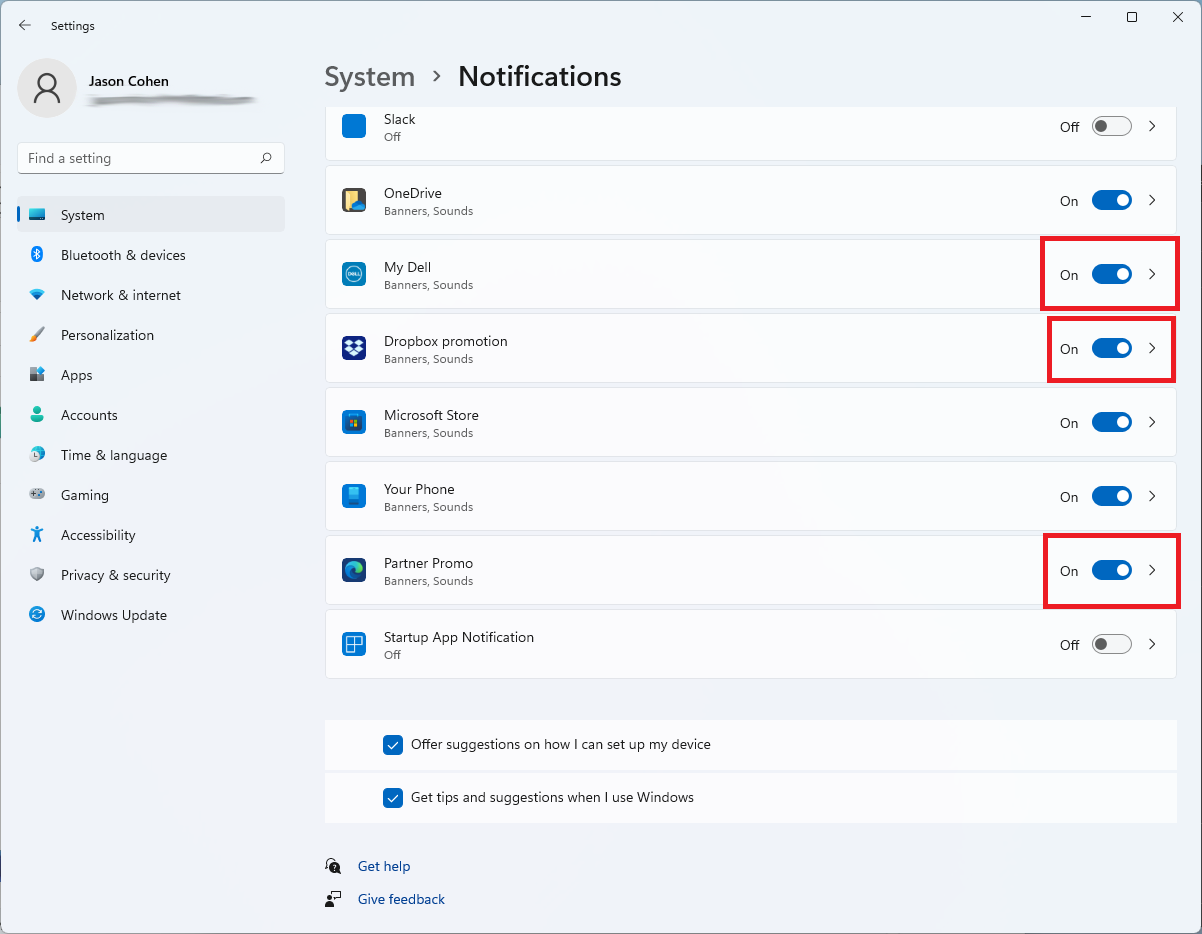
If you’re seeing pop-ups just above the Windows 11 taskbar, it’s likely computer bloatware urging you to sign up for something you don’t need or reminding you about a feature you don’t want. What these programs are called will differ depending on your PC’s manufacturer, but you can take control of them under Settings > System > Notifications.
Take a look through the list of notifications and see if the messages have been coming from any of these entries. Windows 11 does a poor job defining what each entry is for, so you may need to do a web search to find out more. For instance, working on a Dell laptop, I found that SupportAssist, Suggested, My Dell, and Partner Promo could all be turned off.
If you’re sure your PC doesn’t need a particular program, head to Settings > Apps > Apps & features and find the software in question. Click the three-dot menu for it and select Uninstall.
Stop Windows Tips and Suggestions
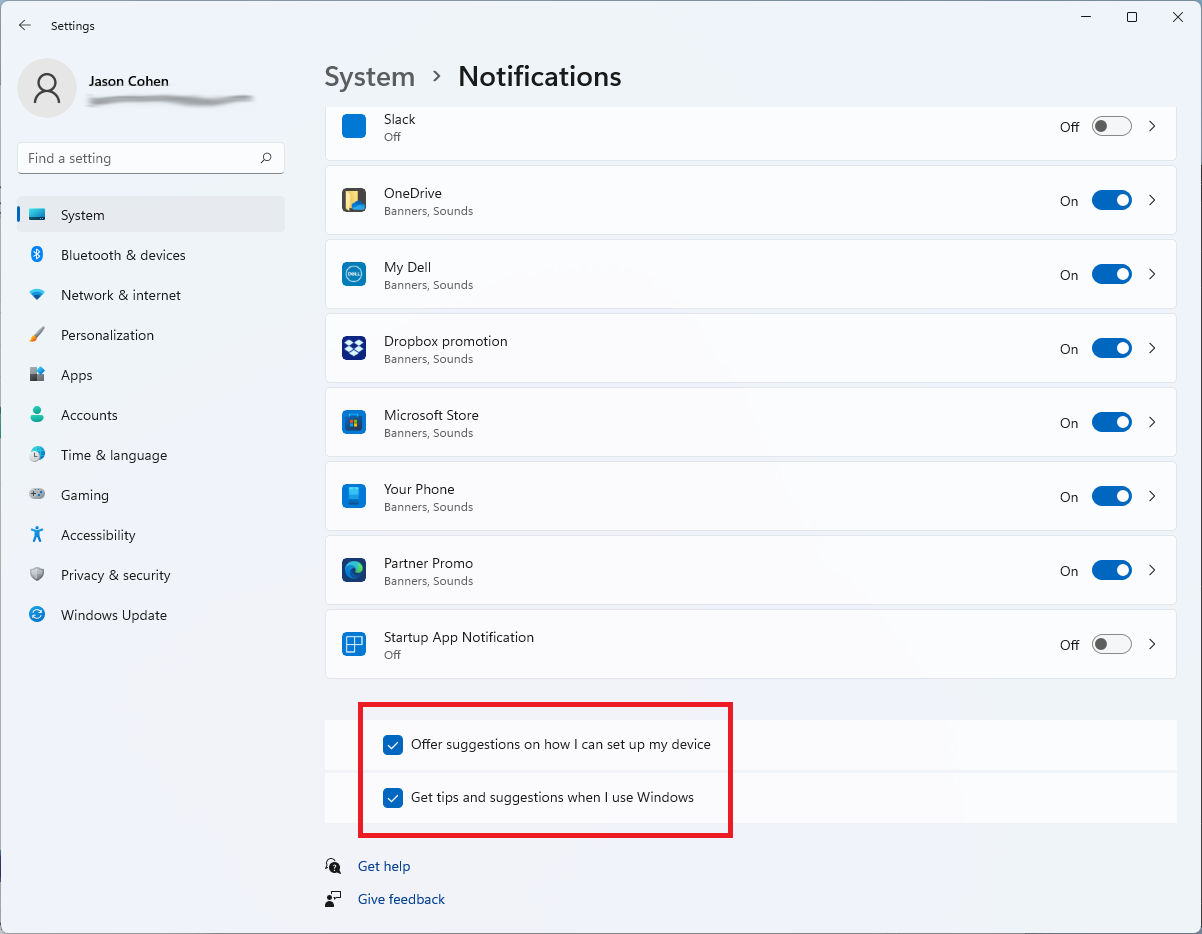
Beyond third-party installations, Microsoft will also serve up suggestions about how to finish setting up your device or tips for how to use certain features. If you don’t want to see these pop-ups, scroll to the bottom of the Notifications settings page and uncheck Offer suggestions on how I can set up my device and Get tips and suggestions when I use Windows.
Turn Off Notifications
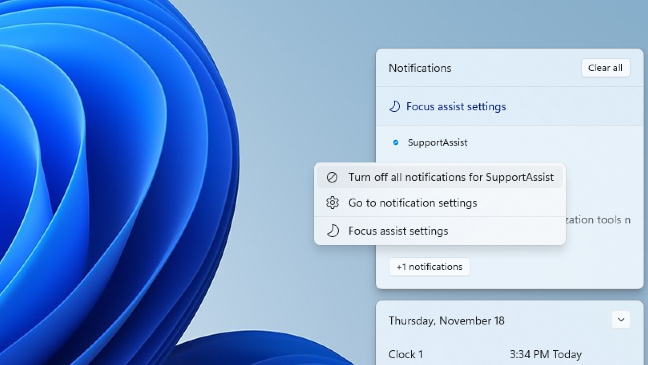
You can also take care of annoying pop-ups right from the initial notification. Click the time in the bottom-right corner and find the ad you want to turn off. Click the three-dot icon and select Turn off all notifications to disable ads for that piece of software.
Remove Ads From File Explorer
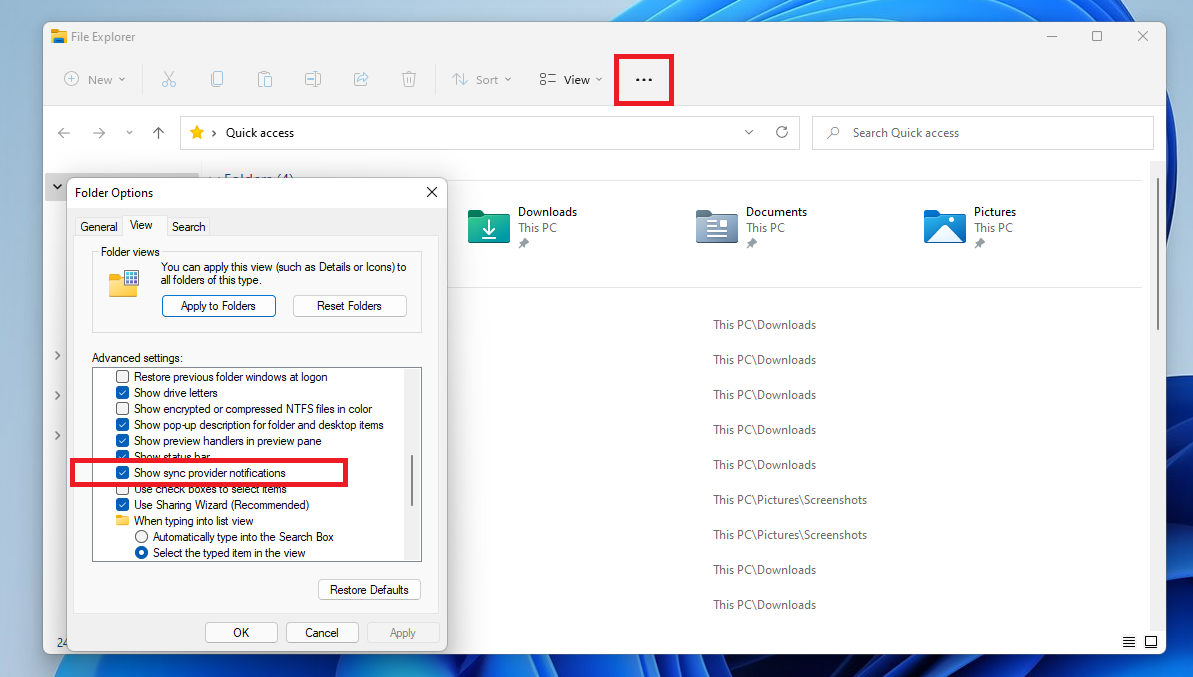
Microsoft even throws ads into File Explorer in order to talk up its OneDrive and Office 365 file sync services. To get rid of them, open File Explorer and click the three-dot icon in the top ribbon. Choose Options to open a dialog box and click the View tab. Under Advanced settings, find Show sync provider notifications and uncheck the option.
Disallow Personalized Ads
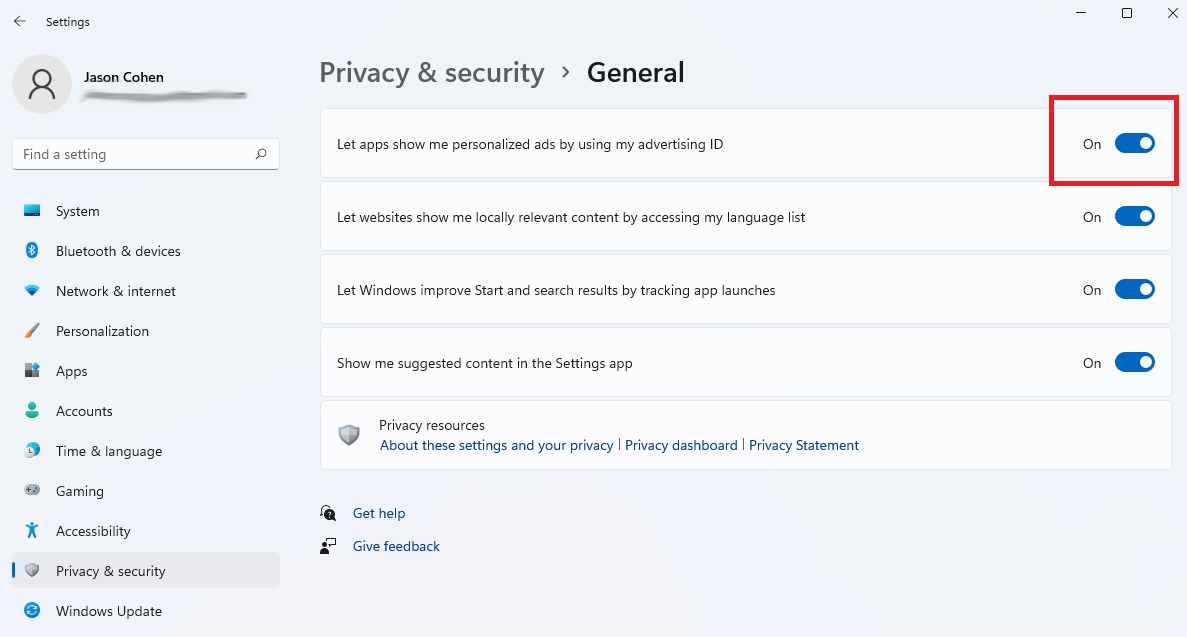
Windows gives you a unique advertising ID in the name of serving you more relevant ads. Nix them via Settings > Privacy & security > General. Disable the switch next to Let apps show me personalized ads by using my advertising ID.
Credits: Jason Cohen
Source: www.PCMag.com