Skip to content
  • Home
  • Emerging Technology & News
  • Computer Help
  • Privacy and Security
  • Reimage Windows Repair
The Reimage Blog
Menu
  • Home
  • Emerging Technology & News
  • Computer Help
  • Privacy and Security
  • Reimage Windows Repair
Facebook Twitter
Home  /  Computer Help  /  Change your Windows 11 wallpaper in 5 quick and easy steps
PostedinComputer Help Posted on November 22, 2021

Change your Windows 11 wallpaper in 5 quick and easy steps

Posted By Shannon.Smith

Check out the sleek new Windows 11 wallpaper.
Sarah Tew/CNET

Not a fan of Windows 11’s default wallpaper? It only takes a few clicks to change it.

Microsoft started rolling out the new Windows 11 operating system last month in phases for eligible devices. It’s been a few years since Microsoft gave Windows a facelift and new features. The update will include Android apps on your Windows PC (not available yet, and we’re not sure when), natively supporting Microsoft Teams and a cleaner, more Mac-like design. But Windows 11 also gives you options for new wallpaper. 

If you’re not a fan of Microsoft’s new default wallpaper — a blooming, abstract flower shape that pays homage to Windows 10’s royal blue colors — you can change it up. Windows 11 has other default images, or you can change your wallpaper to a photo you’ve saved or uploaded to your PC.

We’ll show you how to switch your wallpaper to a background you’re fond of with just a few steps. You can also create virtual desktops and a breakdown of our favorite features. This story was recently updated.

How do I change my Windows 11 wallpaper?
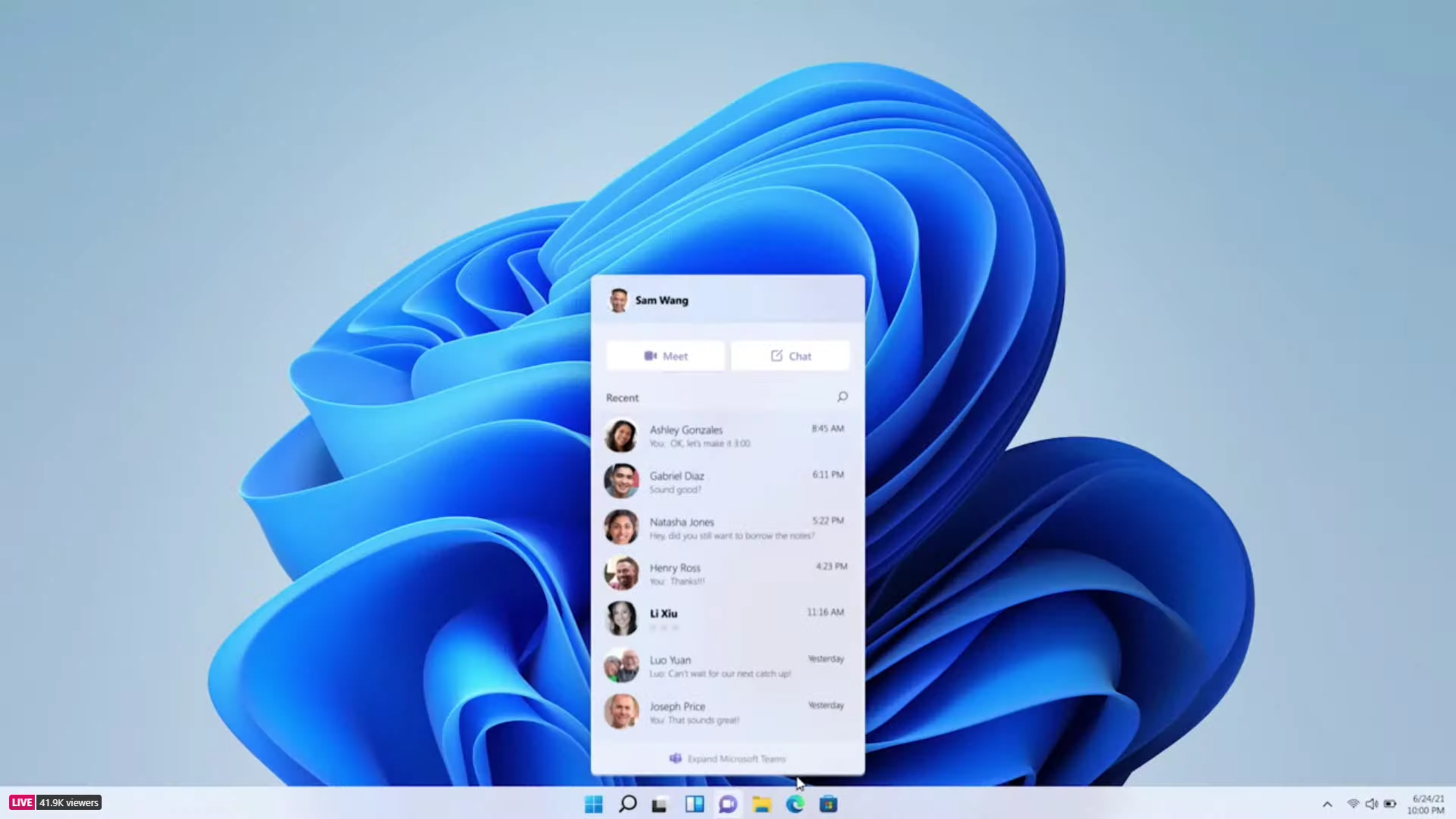
The default Windows 11 wallpaper features an abstract blue swirl design.
Microsoft/Screenshot by Sarah Tew/CNET

Once you have access to Windows 11, here’s how to change your wallpaper: 

1. Click the on-screen Windows button or press the Windows button on your keyboard.

2. Click Settings.

3. Go to Personalization.

4. Choose Background.

5. Select an already available image or click Browse to search for an image you’ve saved to your PC.

Changes to the default wallpaper only scratch the surface of the design and feature changes found on the Windows 11 desktop. For example, you’ll also find ways to customize your Windows 11 desktop with widgets, virtual desktops and Snap Group layouts.

First published on July 23, 2021 at 4:00 a.m. PT.
Credits: Shelby Brown
Source: CNet.com

Share on Facebook Share on Twitter
Previous Article
I used the Apple Card for 3 months. Here’s what I think of it now
Next Article
Screenshots in Windows 10 and Windows 11: 7 easy tricks

About Author

Shannon.Smith

Related Posts

  • Windows 10 21H2 reaches EOS; here’s how to update it

    May 26, 2023
  • Exploring the Dark Side: A Guide to Enabling Dark Mode on Bing Search

    May 22, 2023
  • Killer Network Service: What it is and How to Stop it from Slowing Down Your Computer

    April 21, 2023
Scan Now

Categories

  • Business
  • Computer Help
  • Emerging Technology & News
  • Privacy and Security
  • Reviews

Reviews

Reimage Social

Security

Popular Posts

  • PCWorld calls Reimage “A Fantastic Repair Utility “ July 26, 2011 Reviews
  • 4 Ways to Keep the Ghouls & Goblins Away From Your PC October 26, 2010 Archive
  • The PC Key to Happiness - A Properly Maintained OS September 2, 2010 Archive
  • Google says hacked websites were attacking iPhones for years September 12, 2019 Privacy and Security

Random Posts

  • These 8 stimulus check scams are out to get you. Here’s how to spot them December 17, 2020 Computer Help
  • How to save and delete messages in Microsoft Teams May 22, 2020 Computer Help
  • Google pauses threat to remove Bandcamp Android app May 24, 2022 Business
  • From brain waves, this AI can sketch what you’re picturing April 7, 2023 Emerging Technology & News
© Copyright 2019
We use cookies to ensure that we give you the best experience on our website.Ok